Window and game area
The window of the game is the area in which the game is displayed. It DOES NOT refer to the system window that includes the toolbar, title bar on the top and a frame on the other three sides.
Fullscreen
The "De/activate fullscreen" action allows you to toggle the game between fullscreen on/off. When the window is in fullscreen, it will take up as much area as possible.
For HTML5 games, this action has a "Keep aspect ratio" option (enabled by default). When kept, black borders are added if needed so the game keeps its original proportions; otherwise the game is stretched to fill the whole screen.
Window margins
The margin of the window is the distance between the side of the window and the game window displayed. Shown below is the preview of a game with 100 px margins on all 4 sides.
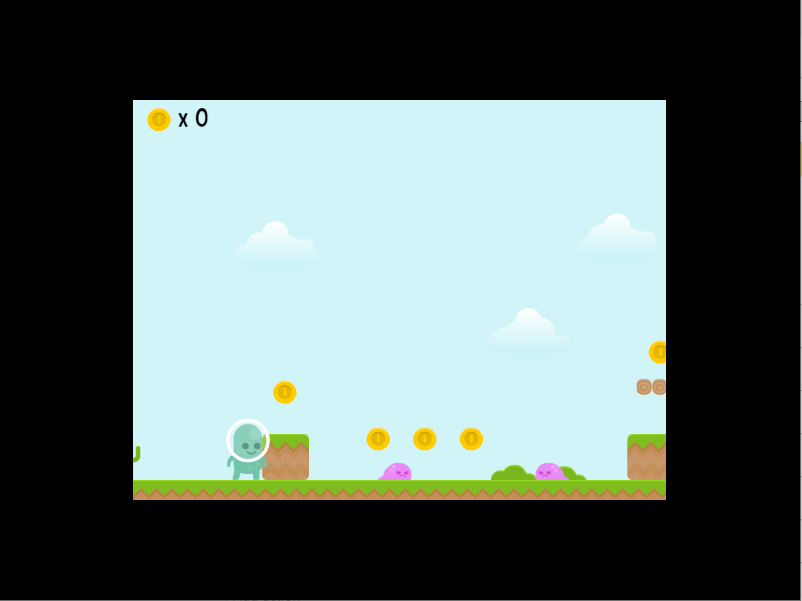
Notice the black borders on all for sides of the window. The width of the borders is 100px.
Game resolution and window size
It's important to distinguish two different things:
- The game resolution is the number of pixels that make up the game area (for example 800x600). It defines how much of the game world is visible and the coordinate system used by your objects.
- The window size is how big the game appears on the screen, in actual screen pixels. The game resolution is scaled up or down to fit the window.
The "Game resolution" action changes the resolution (the visible game area) without changing the size of the window the game runs in.
The "Game window size" action changes the size of the window itself. This only works on platforms that allow it: games running in a browser or on mobile phones can't change their window size, but the game resolution can still be updated. When changing the window size, you can choose whether the game resolution should also be updated to match: if it isn't, the game will be stretched or shrunk to fit the new window.
Adapting the resolution to the window or screen
The "Game resolution resize mode" action controls what happens to the resolution when the window or screen size changes:
adaptWidthupdates the game width to fit the window or screen (the height stays fixed).adaptHeightupdates the game height instead (the width stays fixed).- Leave it empty to disable automatic resizing.
The "Automatically adapt the game resolution" action turns this automatic adaptation on or off while the game is running. It only has an effect if the resize mode is set to adapt the width or the height.
Center the game window
The "Center the game window on the screen" action moves the window to the middle of the screen. This only works on Windows, macOS and Linux — it has no effect when the game runs in a web browser or on iOS/Android.
Window icon
The "Window's icon" action changes the icon shown for the game's window, using an image from your project's resources.
Window title
The window title is the name of the window that is visible on the title bar (located at the top) of the window. The default title name is "Preview of ProjectName" during a preview.
By default, the game name is used for the executable name (on Windows, macOS and Linux), the app name (on Android and iOS) and the title bar (on Windows, macOS and Linux) (and the page title for HTML5 games). You can learn more about it in game properties.
With the action to change the title, the title bar on Windows, macOS and Linux will be changed. Nothing will be visible on Android and iOS. For HTML5 games, the web page title will be changed.
Reading sizes from events
A few expressions let you read the current dimensions, which is useful to position UI elements or adapt your game to different screens:
SceneWindowWidthandSceneWindowHeightreturn the size of the game resolution (the scene window, or the canvas for HTML5 games).ScreenWidthandScreenHeightreturn the size of the whole screen (or of the page for HTML5 games running in a browser).
Reference
All actions, conditions and expressions are listed in the window reference page.